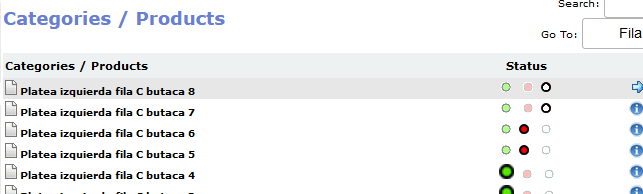
In osConcert there are many ways to manage the seats/products.
That might not be ideal ...sometimes confusing but we have an adapted shopping cart.
In osConcert there are many ways to manage the seats/products.
That might not be ideal ...sometimes confusing but we have an adapted shopping cart.
Each product has a status in the database (products_status)
1=Active and For sale
2/8=Hidden completely
3=Blocked as grey cell
0=De-activated Reserved/Sold
We can block individual products, whole rows and whole categories
We can block as SOLD, HIDDEN or BLOCKED
We can block seats for Social Distancing requirements.
We can use Admin>Products (The Main Category/Products Editor)
We can use Admin>Products>Alternative Edit Categories
We can use in-house database tools (PRO Package)
We can make dummy orders.
Here's some scenarios:
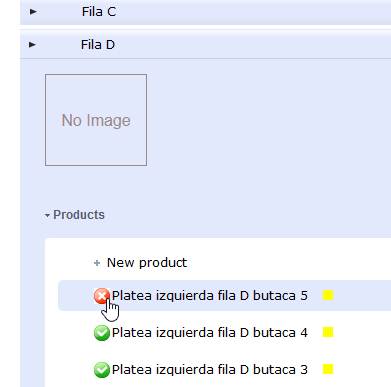
You simply want to block specific individual seats across the seat plan.
Goto Admin>Products. Locate the Category>Row Category>Seat Name and click the green button to red.
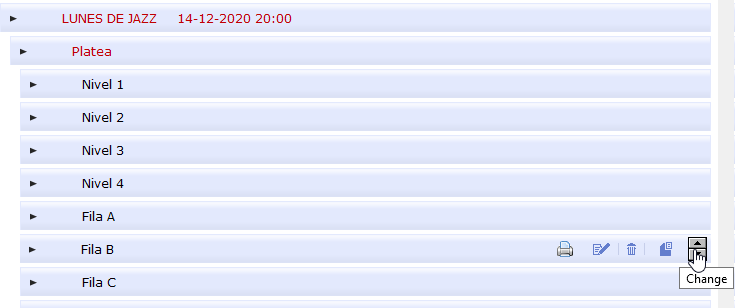
2. You want to RESERVE a whole row of seats (as sold) without an associated order.
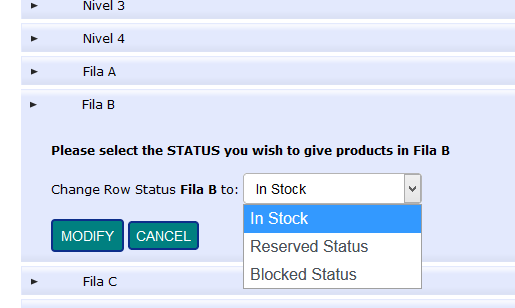
Goto Admin>Products. Locate the row you want to edit. Find the CHANGE icon at the right hand side.
Follow the instruction to Block that Row.
3. You want to RESERVE a lot of seats and associate it with an order. Login as a Box Office Agent and make an order through the Front End (Make a note of the purpose of the reservations)
4. You want to block and hide seats in a certain category
Goto Admin>Products>Alternative Edit Categories
Locate the Category and Category Row by clciking through the 'yellow' folder structure.
Click corresponding buttons green red or white Active/De-active or Hidden.
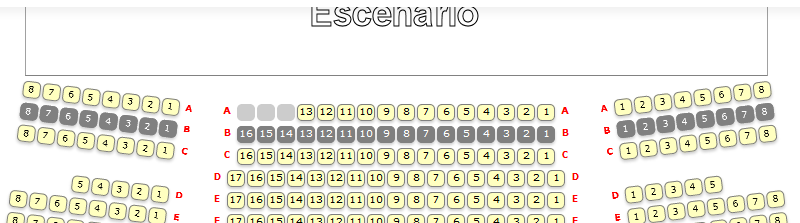
5. You want to block out many seats as part of Social Distancing requirements.
Goto Admin>Concert Details>Box Office
Enable Allow Box Office Blocker=yes
Login at the Front End with your Box Office Account
Goto the Seat Plan and click Box Office Blocker.
Choose the Seat Plan or ALL Seat Plans and simply click seats to BLOCKED.