
How do I correctly set Date and Time?
Let's first update a setting to make it easier to set a correct DATE ID
First make sure your default time format is set correctly in Shop Settings

Admin>Concert Details is where we set the date for our events.
Here we can set the Date and Time of the event.
Just follow this procedure and you will get it.
Let's first update a setting to make it easier to set a correct DATE ID
A DATE ID is a unique ID required for reporting and scanning features throughout osConcert.
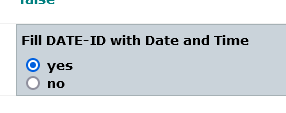
Goto your seat plan settings and set Fill DATE-ID this will create a DATE-ID automatically when you set the Date and Time and Save the listing.
Now we must goto Admin>Concert Details
It's important to set the DATE with the Date Picker and write the 24 hour TIME e.g 2000 (=8:00pm)
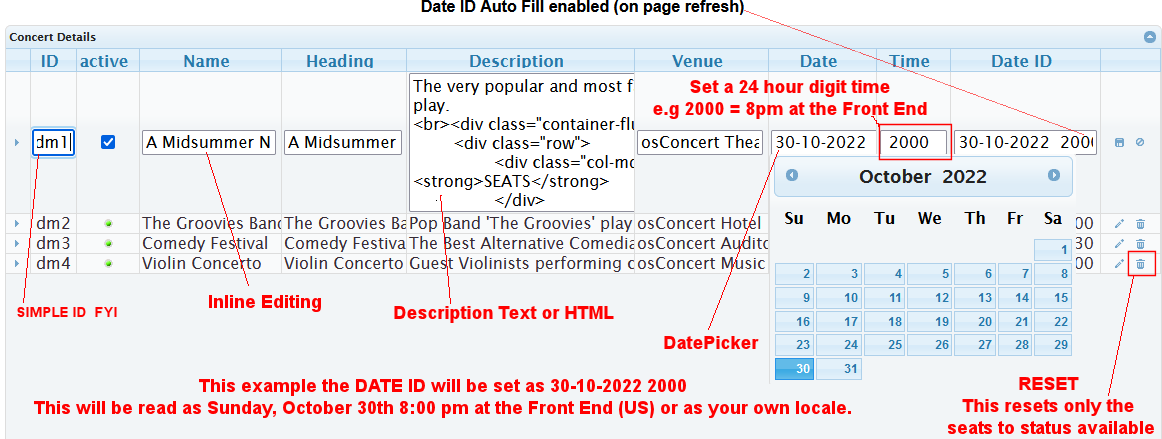
In conclusion setting a date from the datepicker 30-10-2022 and write a time 2000 we will get a DATE ID set automatically as 30-10-2022 2000 and at the Front End the Date and Time will read Sunday, October 30th 8:00pm or whatever way your server locale is set for your country/region.